- Task Automation Handles One Job: Choose workflow automation when several tasks and handoffs need coordination
- Four Common Automation Areas: Communication, data handling, notifications, and recurring admin or reporting
- Rules Handle Predictable Tasks: AI helps with less structured input, while agents can manage multi-step tasks
- Start With Frequent, Low-Risk Work: Keep judgment calls, changing rules, and sensitive replies manual
- Measure Time Saved and Payback: Include setup, upkeep, exceptions, and ongoing costs
Task automation uses software to complete a repeatable job based on rules you set. The software detects a trigger, checks a condition, and performs a defined action. Most of this work falls into four types: communication, data handling, notifications, and reporting tasks.
Think of the recurring jobs that eat up your team’s week. These range from copying form entries into your CRM to chasing approvals. Task automation handles them for you. That saves hours, cuts errors, and speeds up daily work.
This guide explains how task automation works, why it pays off, and how different teams use it. You'll also learn what to automate and what to leave alone.
Disclaimer: This content contains some affiliate links for which we will earn a commission (at no additional cost to you). This is to ensure that we can keep creating free content for you.
Table of Contents
What Is Task Automation?
Task automation is when software handles repetitive jobs by following rules you set, with little to no human input. You set the rule once, and the tool runs on its own. It watches for a trigger, checks a condition, then performs the action you defined. These actions could include creating a record or sending a reminder.
Say a lead fills out a form. That is the trigger. The tool checks a condition, such as whether the email is valid. If it is, the action runs and creates the record in your CRM. The same pattern can send a reminder or file a document.
The key phrase is one job. A task has a clear start and end, and you can describe it in a single sentence. That's what makes it easy to build. A process with handoffs between people is a different thing, called workflow automation.
How Does Task Automation Work?
Task automation works through three main parts: a trigger, a condition, and an action. The trigger starts the task, while the condition checks whether it should run. The action is the work the software performs. Many tools also keep logs so you can check each run.
Here's how these parts work together:
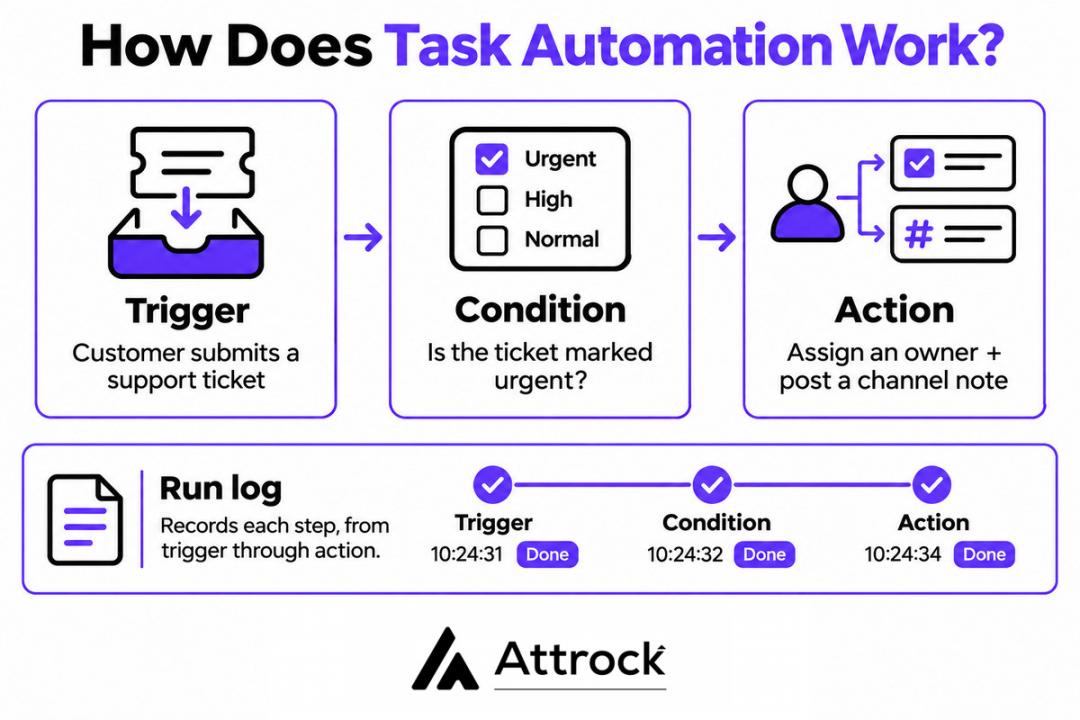
- Trigger: A customer submits a support ticket
- Condition: The rule checks whether the ticket is marked urgent
- Action: The software assigns an owner and posts a note in that owner’s channel
The tool then records the result in a run log. You can check this record to see when the task ran and whether it worked.
Task automation uses a trigger to start a job, a condition to check whether it should run, and an action to complete it. A run log records the result, helping you spot errors and check that the task works as expected.
What Are the Benefits of Task Automation?
Task automation saves time, reduces manual errors, speeds up work, and helps teams handle more tasks. It takes repetitive jobs off employees' plates, freeing them to focus on work that needs human input. These benefits can improve daily operations, even without reducing staff or payroll.
You Get Hours Back
Task automation gives employees more time by handling jobs they repeat each day. Glean's Work AI Index 2026 reports that workers say AI automation saves them roughly 11 hours per week. This is vendor research, so actual savings will vary.
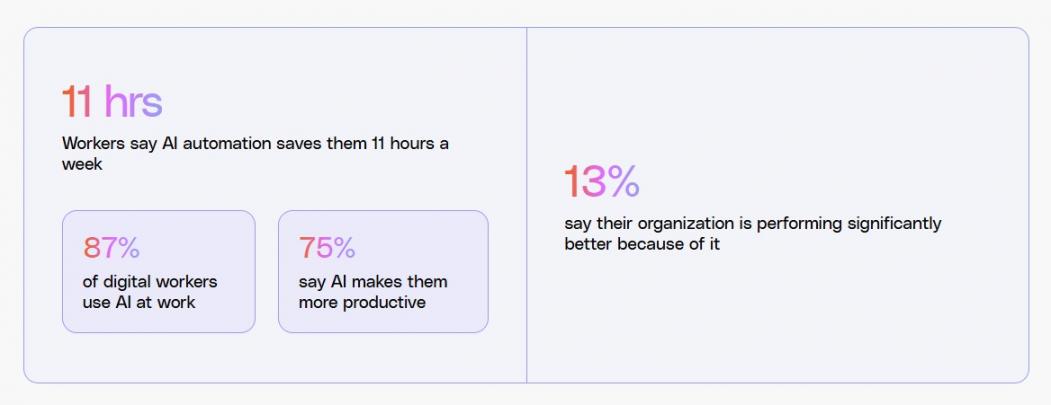
Image via Glean
Fewer Mistakes in Repetitive Work
Manual data entry, copy-paste errors, and missed follow-ups can affect work quality. Task automation follows the same rules each time, reducing mistakes caused by missed steps or distractions. Employees can then spend less time fixing errors and redoing work.
Work Moves Faster Through the Team
Task automation speeds up work by reducing delays between actions. For example, a new lead can enter your CRM and reach the right sales rep without manual handoffs. This helps teams respond sooner and improves employee productivity.
It Handles More Work Without New Hires
Automated tasks can handle more requests without requiring someone to process each one. For example, a form submission can trigger the same actions whether 10 or 100 people submit it. This helps teams manage rising workloads without adding routine admin work.
HubSpot's 2026 State of Marketing found that 25.7% of marketers reported a significant workload increase in the previous year. Another 47.4% reported a moderate increase. Task automation can help teams manage this growing workload.
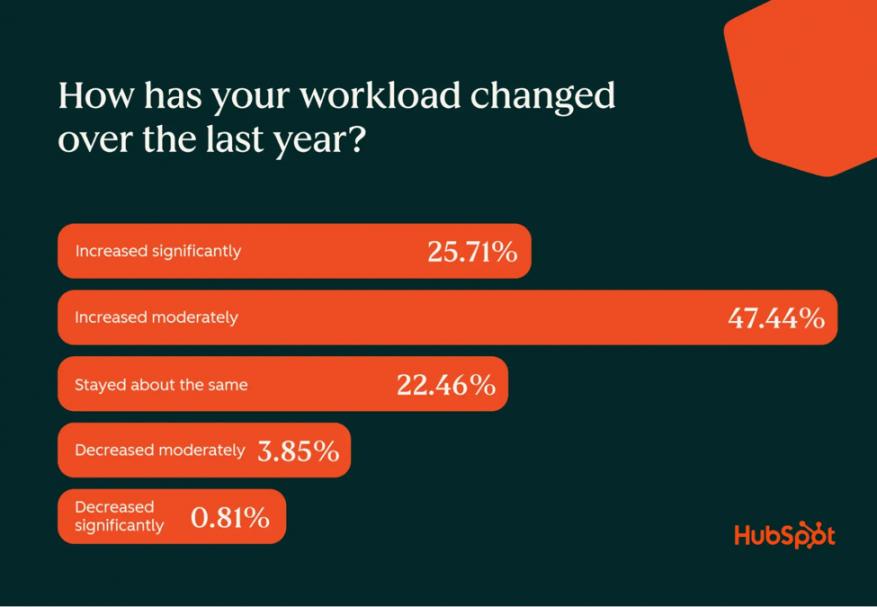
Image via HubSpot
Task automation saves employees time and reduces errors in repetitive work. It also speeds up team responses and handles more tasks without extra hires. This frees people from routine jobs, so they can focus on work that needs their attention.
What Are the Common Types of Task Automation?
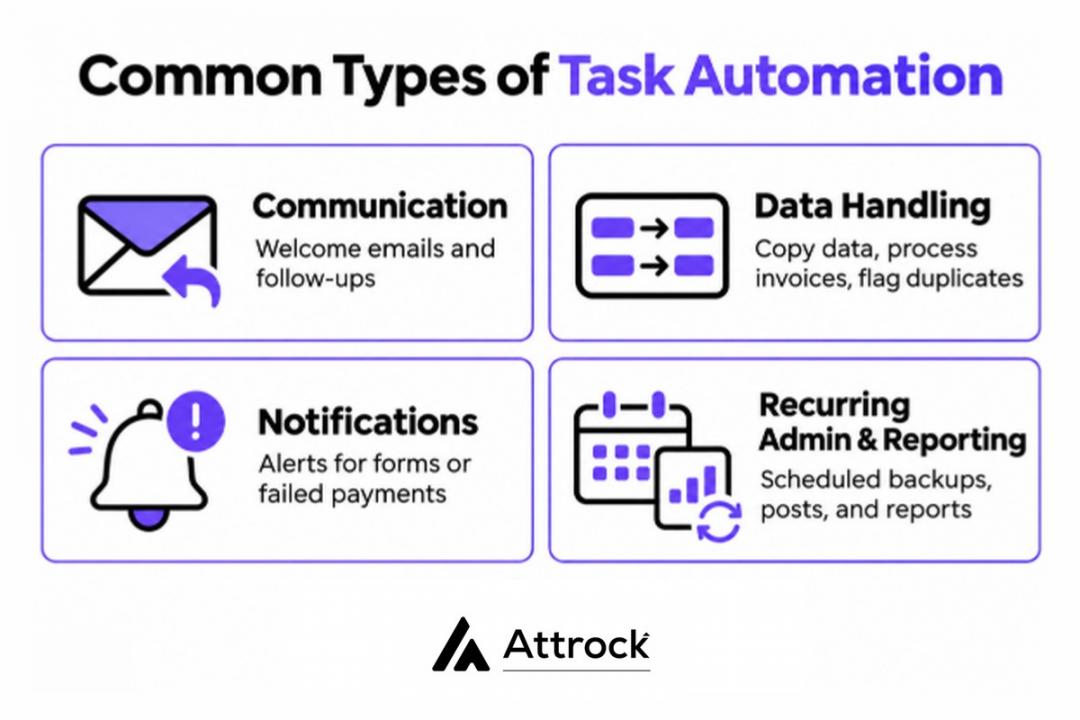
Task automation jobs fall into four common groups: communication, data handling, notifications, and recurring admin. Each handles a different kind of repeatable job, from sending emails to updating records and preparing reports. Some tasks may also fit into more than one type.
Repetitive Communication Tasks
These automations handle messages sent in response to the same event. For example, a tool can send welcome emails to new subscribers or follow-ups after demo requests. Triggers and email templates keep these messages consistent without manual effort.
Rule-Based Data Work
This type of repetitive task automation handles structured data using set rules. It can copy values between systems, process invoices, or flag duplicate records. Since these tasks follow clear steps, they're often a good starting point for automation.
Event-Driven Notifications
These automations alert people when a specific event happens. A web form can create a support ticket, while a failed payment can notify the account owner. Event triggers also power the notification side of ecommerce chatbots. They help teams respond without relying on someone to spot every update.
Recurring Admin and Reporting
These automations handle tasks that run on a set schedule. Examples include weekly backups, scheduled social posts, and monthly reports. You can set the time and rules once, then let the software handle each run. Regular checks help catch errors or missed runs.
The four main types are repetitive communication, rule-based data work, event-driven notifications, and recurring admin or reporting. They cover common jobs such as sending emails, updating records, alerting teams, and preparing reports.
What Are Some Task Automation Examples by Function?
Task automation helps teams handle repetitive jobs across sales, marketing, customer support, finance, HR, and operations. It replaces manual steps with software that follows set rules, responds to events, or runs on a schedule. Here are six practical examples showing how each team can save time.
| Task | Manual Version | Automated Version | |
|---|---|---|---|
| Sales | New lead entry | A rep copies form details into the CRM and assigns an owner | Form submissions automatically create CRM records |
| Marketing | Content scheduling | Someone uploads and schedules each post by hand | One rule queues every channel from a single source |
| Customer Support | Ticket routing | An agent reads each ticket and picks a queue | Keywords and account tier route it, and only exceptions reach a person |
| Finance | Invoice intake | Someone opens each email, saves the PDF, and keys values into the ledger | The file is saved, values reach the ledger, and mismatches get flagged |
| HR | New-hire setup | A checklist gets worked across five systems, usually late | A start date triggers accounts, equipment requests, and the first-week schedule |
| Operations | Weekly reporting | Someone rebuilds and exports the same report each week | A scheduled task generates the report and saves it to a shared folder |
Salesforce’s 2026 State of Sales found reps spend 40% of their week actually selling. Sales task automation can reduce the admin work that takes time away from customers.
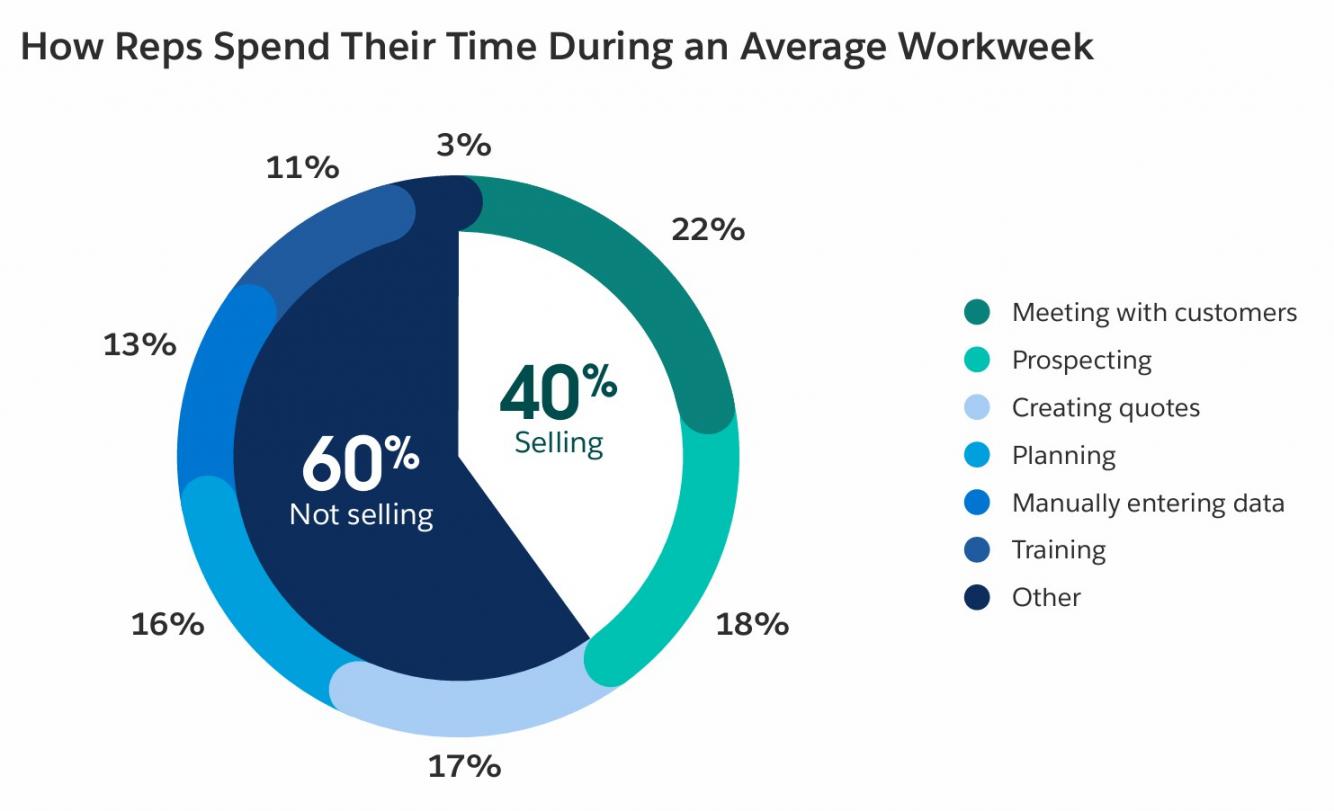
Image via Salesforce
With marketing automation software, you can schedule posts and send campaign emails. For small businesses, these simple tasks can save time when one person handles several roles.
Common examples include automatic lead entry, content scheduling, ticket routing, invoice entry, employee account setup, and report generation. These tasks replace repeated manual work with software that follows set rules or runs when triggered.
Rule-Based vs AI Task Automation: What's the Difference?
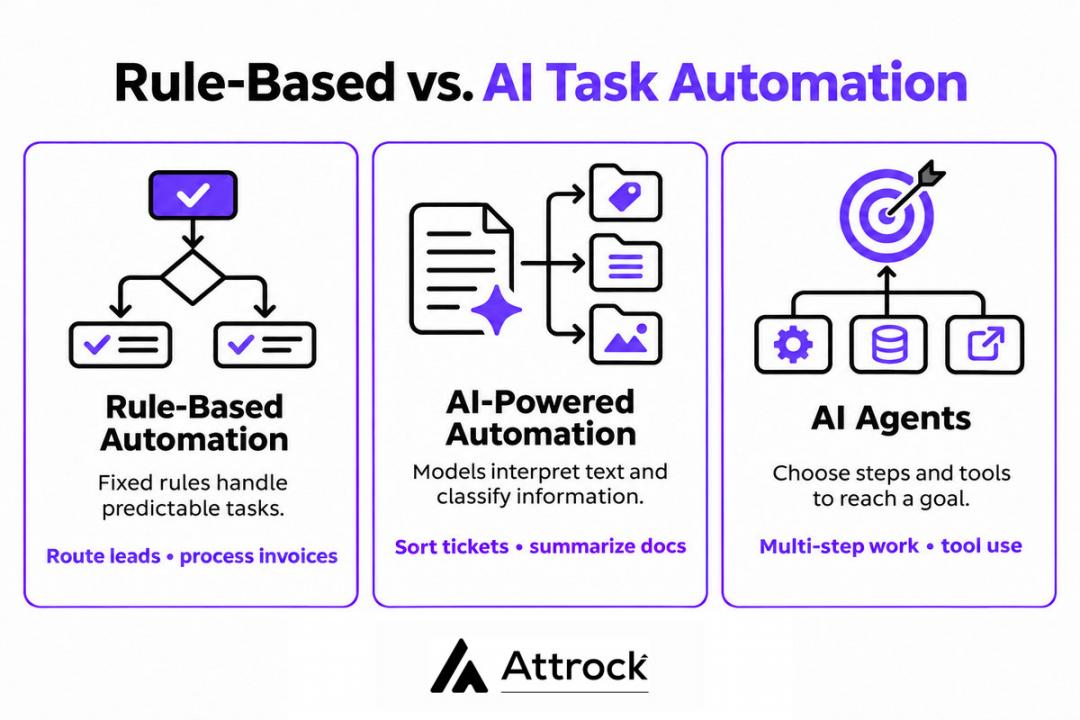
Rule-based task automation follows fixed instructions, while AI-powered automation can interpret text, classify information, or draft responses. AI agents go further by choosing steps and tools to reach a goal. The right option depends on how predictable the task is and how much human oversight it needs.
When a Rule Is Enough
Use rule-based automation when inputs are predictable, and the task follows clear steps. It's often cheaper, faster, and easier to maintain than AI. Examples include routing leads by location, processing standard invoices, and scheduling reports.
When You Need a Model
Use AI-powered automation when information doesn't follow a fixed format. A model can read support tickets, sort résumés, or summarize long documents. It can find meaning in text that simple rules might miss. However, a person should review important decisions and outputs.
Where an Agent Earns Its Place
AI agents can choose their next steps based on a goal. They can use different tools, handle several tasks, and adjust when something changes. The best AI agents handle more complex jobs, but they still need human oversight and clear limits.
Here's how the three compare.
| Rule-Based | AI-Powered | AI Agent | |
|---|---|---|---|
| Input | Structured, predictable data | Unstructured text or documents | Varies by task |
| How It Works | Follows set rules | Interprets or generates information | Chooses steps and tools |
| Human Review | Check logs and errors | Review important outputs | Set limits and monitor actions |
| Best For | Repeated tasks with clear rules | Tasks involving text or judgment | Complex tasks with several steps |
Use rule-based automation when a task follows clear, fixed instructions. Choose AI when it needs to interpret text or varied information. Use an AI agent when a task needs several steps and decisions. All three need suitable checks to catch errors.
Task Automation vs Workflow Automation: What's the Difference?
Task automation handles one job from start to finish, while workflow automation connects several tasks. A workflow may involve different people, approvals, and handoffs. The main difference is scope: task automation handles individual jobs, while workflow automation coordinates how several jobs fit together.
| Task Automation | Workflow Automation | |
|---|---|---|
| Scope | One job, start to finish | Several connected jobs |
| People Involved | Usually runs without handoffs | May involve handoffs, approvals, and exceptions |
| Build Effort | Often simple to set up | Needs more planning and testing |
| Example | Send a reminder after a form submission | Route a request, get approval, set up access, and notify |
A few related terms describe different parts or levels of automation:
- Business Process Automation (BPA): Automates larger processes that may span several teams or departments
- Robotic Process Automation (RPA): Uses software bots to perform actions through an app's interface, much like a person would
These terms aren't interchangeable. Task and workflow automation describe the scope of the work, while RPA describes how software performs it. BPA usually covers broader business processes.
Task automation handles one job end to end. Workflow automation connects several jobs, often across teams, with steps, approvals, and handoffs. The main difference is how much work the automation coordinates.
How to Start Automating Tasks
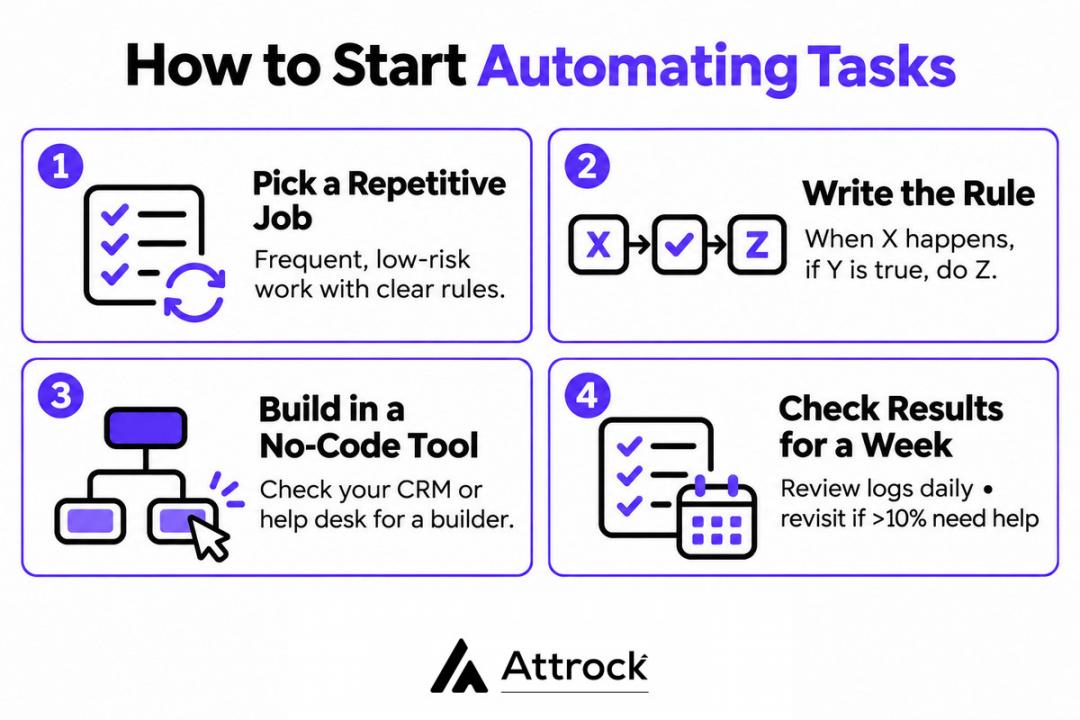
To get your first task automation running without hiring a developer, start by choosing a suitable job. Then, write a clear rule, build it in a no-code tool, and check the results. A small, well-defined task may take an afternoon to set up. Give it a week of testing before you rely on it.
1. Pick a Repetitive Job With Clear Rules
Start with a job your team repeats often and handles in the same way. Look for tasks that take time, happen at least weekly, and follow clear rules. Also consider the cost of a mistake. Begin with frequent, low-risk tasks that need little human judgment.
2. Write the Rule in One Plain Sentence
Use this format to write your rule: “When X happens, if Y is true, do Z.” If you can't complete that sentence, the task needs clearer rules before you automate it. Note the exceptions too, like a blank field or a value out of range. Decide when the software should stop and ask someone to review the task.
3. Build It in a No-Code Tool
You may not need new task automation software. Your CRM, help desk, or project management tool may already include a rules builder. Check its settings before buying another product. Should you need to compare several options, dedicated CRM automation tools are available.
For sales tasks, the HubSpot Sales Hub offers task management and automation features across its paid plans.
Task queues start at Starter, while sequences and task-creating workflows start at Professional. HubSpot's free tools include task management and limited automation. Sales Hub Starter adds paid task-management features. However, advanced capabilities, such as sequences and more sophisticated workflows, require eligible higher-tier plans.
You can try the Sales Hub task tools to see whether they fit your process. For simpler jobs, a lighter builder from these CRM tools for small businesses will do.
4. Check Results for a Week
Don't assume the automation works just because it runs. Task automation solutions can fail without obvious signs, so check the run log each day during the first week. Look for missed actions, incorrect results, and cases your original rule didn't cover.
Track how often a person needs to step in. If more than 10% of runs need manual help, review the rule and its exceptions.
Start with a frequent, low-risk job that follows clear rules. Write its rule in a plain sentence before choosing a no-code tool. Build the automation, then check its logs and results for a week. Fix missed actions and frequent exceptions before relying on it.
What Tasks Should You Not Automate?
Keep judgment calls, frequently changing rules, rare jobs, and sensitive customer interactions out of task automation. Rules can’t read context or offer a human voice. They also cost too much to keep current or to build for rare jobs. Watch for:
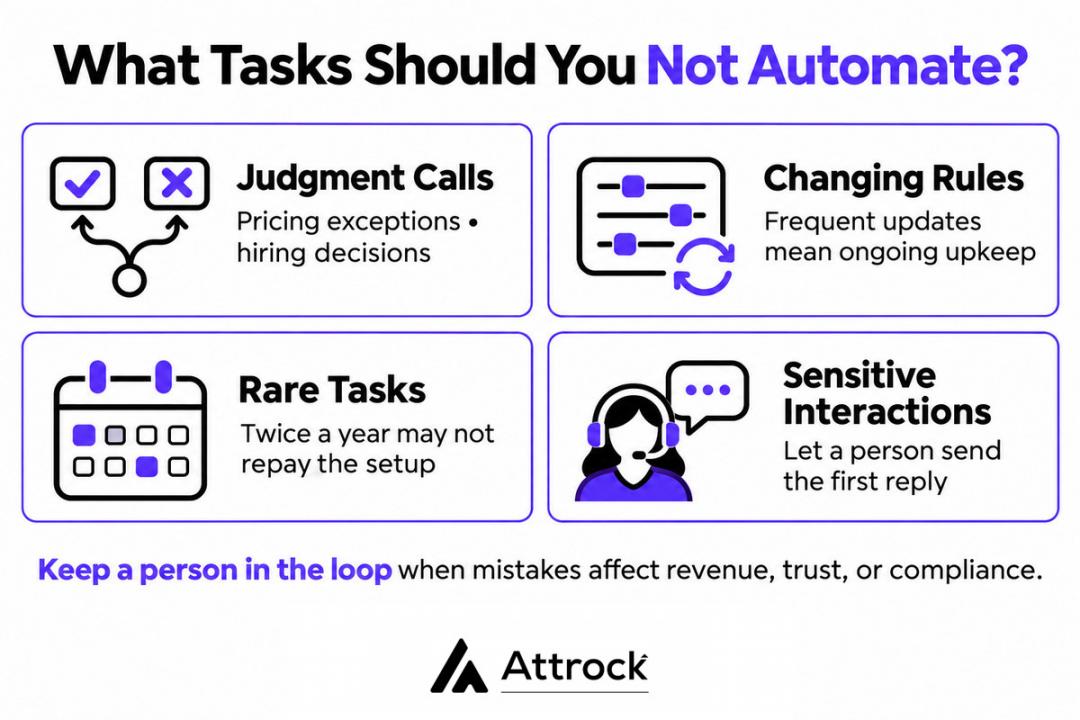
- Tasks that need judgment. Pricing exceptions, hiring decisions, and anything that depends on context that fixed rules may miss.
- Tasks with changing rules. If the logic changes regularly, you'll spend too much time updating and testing the automation.
- Tasks you rarely perform. A job you do twice a year may not save enough time to justify the setup.
- Sensitive customer interactions. Automate ticket routing if it helps, but let a person handle the first reply to an unhappy customer.
If a mistake would hurt revenue, trust, or compliance, keep a person in the loop.
Leave judgment calls, changing rules, and rare jobs to people. Also keep sensitive customer conversations personal. Automate the routing where useful, but let people handle the response.
How Do You Measure Task Automation ROI?
Measure task automation ROI in hours saved per month, then calculate your payback period. Time one manual run, multiply by monthly runs, and subtract ongoing maintenance and review time. Divide your upfront build time by those net monthly savings. If payback takes longer than the workflow will last, skip the job.
Use these five steps:
- Time one manual run to record how long the task takes without automation. Say 10 minutes, for example.
- Multiply the time per run by how often you do the task. At 20 runs per month, that's 200 minutes.
- Add up the time spent checking results, handling exceptions, and maintaining your automation. Say this takes 60 minutes each month.
- Calculate the time saved. Subtract the remaining work from the original monthly total. In this example, you save 140 minutes per month.
- Calculate the payback period. Divide the task automation setup time by the monthly time saved. A four-hour build takes 240 minutes, so it pays back in about 1.7 months.
This calculation shows when the time saved covers the setup effort. It doesn't include software fees or other financial costs. For a fuller ROI calculation, compare the value of the time saved with setup costs and ongoing expenses.
Time one manual run, multiply by monthly runs, and subtract automation upkeep time to find your monthly savings. Then divide the build time by those savings to estimate how long the automation takes to pay back.
FAQ
Q1. Can You Use ChatGPT to Automate Tasks?
A. Yes. ChatGPT can run scheduled tasks, recurring summaries, and reminders automatically. Depending on your plan and available integrations, it can also work with connected apps and trigger-based workflows. For automation involving external systems, check which connections, permissions, and actions are supported.
Q2. What Are the Common Types of Task Automation?
A. Four common areas are communication, data handling, notifications, and recurring admin or reporting. These describe the tasks you can automate, not formal technical categories.
Q3. How Is Task Automation Different From Workflow Automation, BPA, and RPA?
A. Task automation runs one job while workflow automation chains several jobs with handoffs between people. Business process automation spans an entire function end to end. Meanwhile, robotic process automation clicks through software screens like a person.
Q4. Do I Need to Know How to Code to Automate Tasks?
A. No. Most CRMs, help desks, and project tools have built-in rule builders. No-code tools can also connect apps without custom code.
Q5. Can I Do Task Automation for Free?
A. Yes. You can use built-in automation features in tools you already pay for or try free no-code plans. Check their limits on monthly runs and steps before relying on them.
Q6. Will Automation Reduce My Team's Workload?
A. Not automatically. It cuts time on repeat jobs, but new work often fills the freed hours. Total workload only drops if you protect that time. Decide up front what the hours are for.
Q7. What's the Best First Task to Automate?
A. Start with a frequent, repetitive job that follows clear rules. Good examples include data entry, scheduled reports, and reminder emails.
Q8. Is Task Automation Worth It for a Small Team?
A. Yes. Small teams can save time on routine jobs like scheduling, invoicing, and data entry. Assign one person to check the automation and handle exceptions.
Start With One Repeatable Task
Task automation works best when it starts small. Begin with one repeatable job that software can run using clear rules. Test it before relying on it, then measure the time it saves. You don't need a developer or a major budget to get started.
If you'd rather not start cold, talk to Attrock about marketing strategy and automation tools.
For sales tasks, explore HubSpot Sales Hub to see how its task tools can help automate routine work.
Disclaimer: This content contains some affiliate links for which we will earn a commission (at no additional cost to you). This is to ensure that we can keep creating free content for you.